

Web : Clear browser cache
On this page
1. Quick Overview
Purpose: Clearing the cache in Google Chrome helps improve browser performance and resolves issues related to cached data.
2. Step-by Step Instructions
- Open Google Chrome on your computer.
.
- Click on the three vertical dots at the top right corner to open the menu.
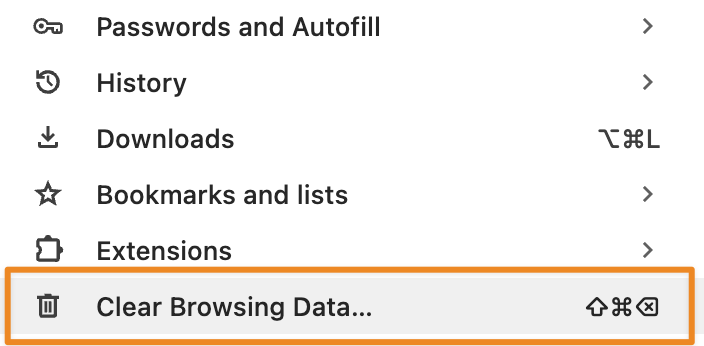
- Hover over "More tools", then click on “Clear browsing data.”
- In the dialog that appears, select the time range "All time" to clear everything.
- Ensure “Cached images and files" is checked. Optionally, select other types of data you want to clear.
- Click on the "Clear data" button to confirm.
3. Tips and Tricks
Best Practices: Clear the cache regularly to maintain browser performance.
Shortcuts: Use the shortcut "Ctrl + Shift + Delete" (Windows) or "Command + Shift + Delete" (Mac) to quickly access the clear browsing data menu.
Additional Resources
- Google Chrome support page on clearing browsing data: Clear browsing data - Chrome Help