

How-to : Bulk import jobs
On this page
1. Quick Overview
Purpose: The OPUS bulk jobs Importer enables administrators to efficiently import multiple jobs into OPUS, streamlining the setup process and ensuring data accuracy.
2. Step-by-Step Instructions
- Download the Excel import template by clicking on the links below
- Jobs Importer: OPUSBulkJobImporterTemplate.xlsx.
- Jobs Importer with sites (This option imports jobs and sites, creating the site associated with the job if the site does not exist: OPUSBulkJobWithSiteImporterTemplate.xlsx.
- Fill in the required information in the Excel spreadsheet, including Job Reference, Site Reference, Checklist Name, Item, Operator, Project, Start Dates etc.. Ensure all compulsory fields are completed.
- Columns with a Red Banner are considered Mandatory and must be captured
- Check the validation indicators in column A to ensure data accuracy.
- Green indicates correct entries, while
- Red indicates incomplete or invalid entries.

-
Once the spreadsheet is filled out, log in to OPUS as an administrator and navigate to the "Jobs - Checklists" section on the left menu panel
-
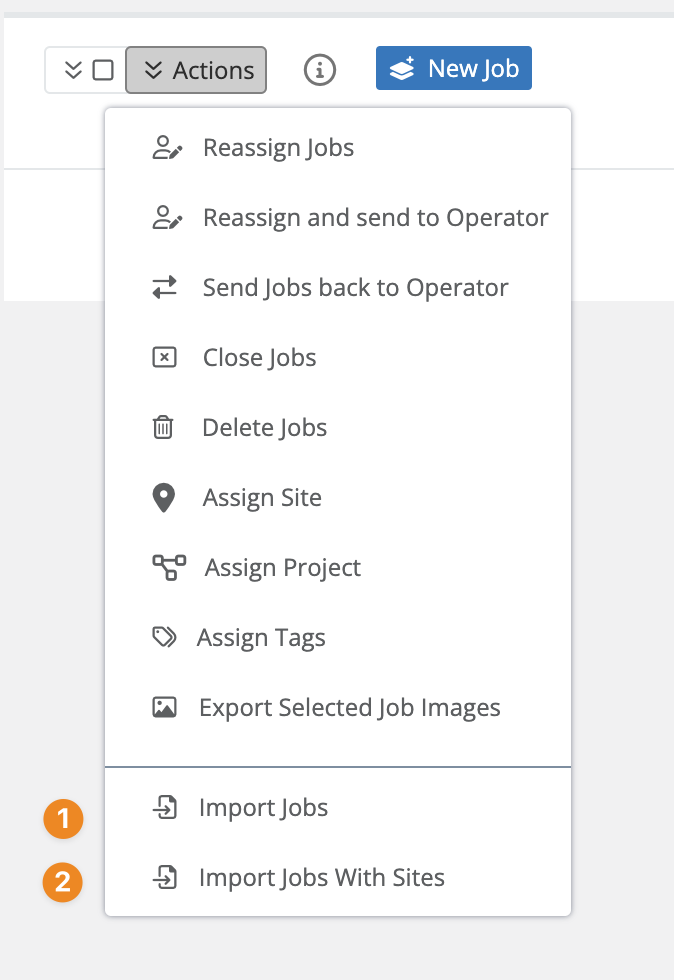
Click on Actions button then click on one of the 2 import options:
- Jobs Importer:
- Jobs Importer with Sites (This option imports jobs and sites, creating the site associated with the job if the site does not exist
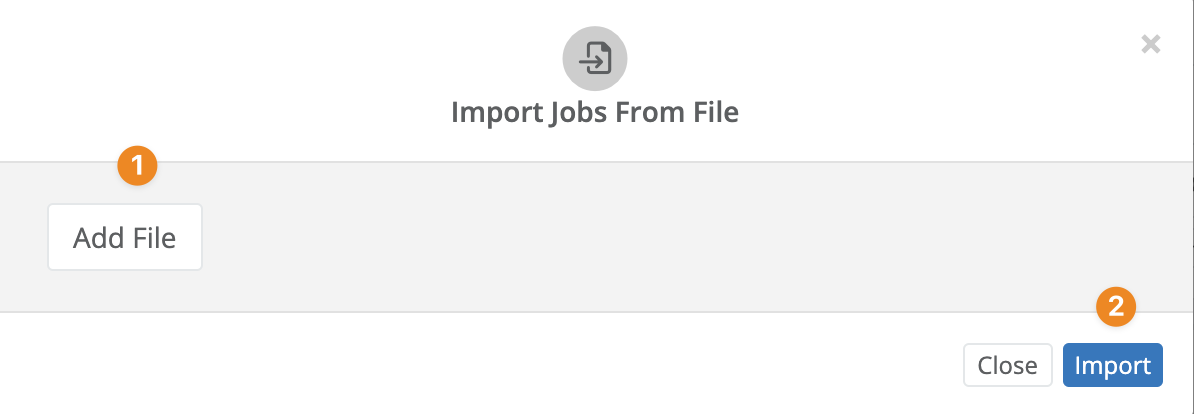
- Click on the “Add File” button to select the bulk import file, then click on the “Import” button to import the jobs into OPUS
3. Tips and Tricks
Best Practices: Double-check the data in the spreadsheet before importing to ensure accuracy.
Additional Resources
- refer to the OPUS documentation or contact the support team.