

How-to : Bulk import site panels
On this page
1. Quick Overview
Purpose: The OPUS Bulk Site Panels Importer enables administrators to efficiently import multiple site panels into OPUS, streamlining the setup process and ensuring data accuracy.
2. Step-by-Step Instructions
 Download the Excel import template by clicking on the provided link: OPUSBulkSitePanelImporterTemplate.xlsx.
The link is available by clicking on the “i” button:- Fill in the required information in the Excel spreadsheet, including Site Panel Name, Site Reference. Ensure all compulsory fields are completed.
- Columns with a Red Banner are considered Mandatory and must be captured
- Check the validation indicators in column A to ensure data accuracy.
- Green indicates correct entries, while
- Red indicates incomplete or invalid entries.

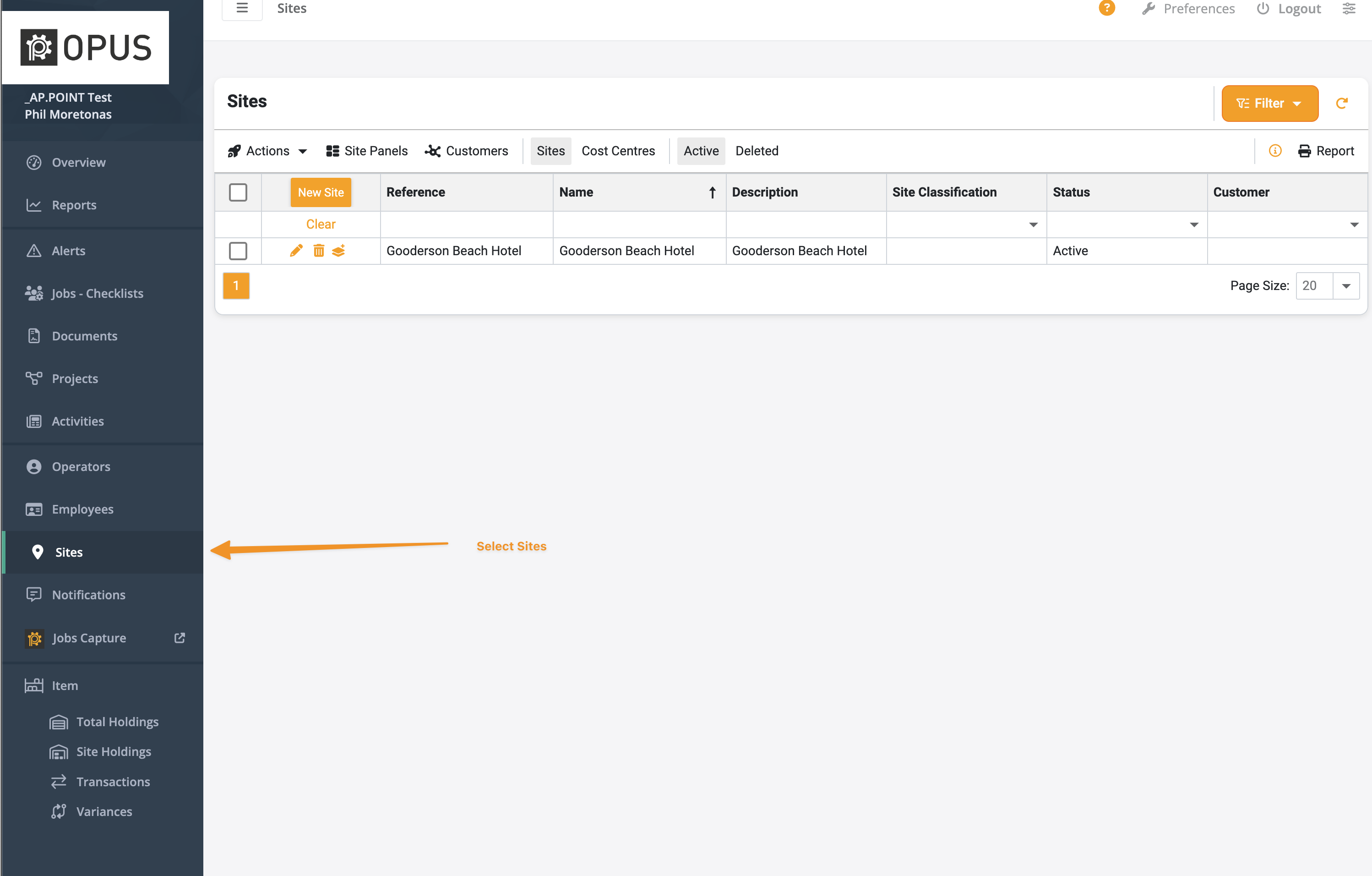
- Once the spreadsheet is filled out, log in to OPUS as an administrator and navigate to the "Sites" section on the left menu panel
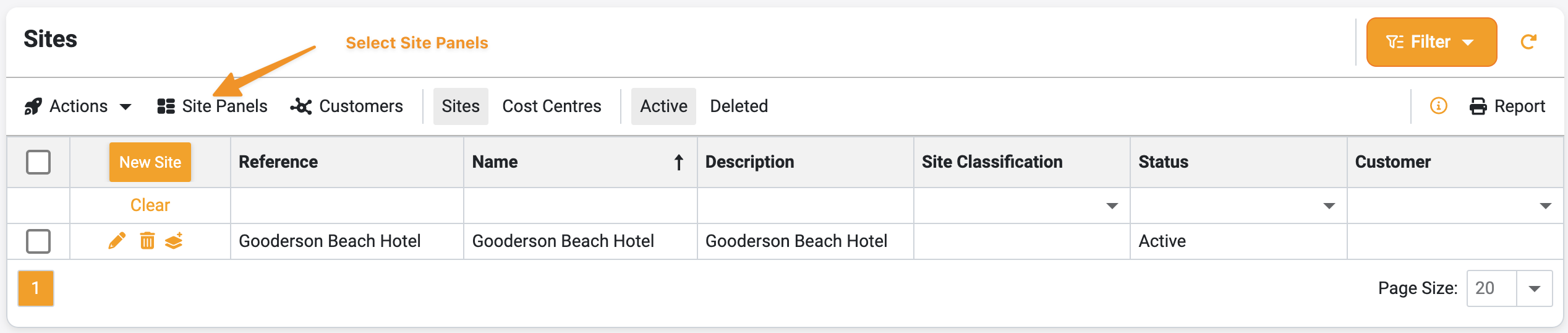
- Click on the Site Panels button to enter the Site Panels section, this will only be visible if the role has been set for your User.
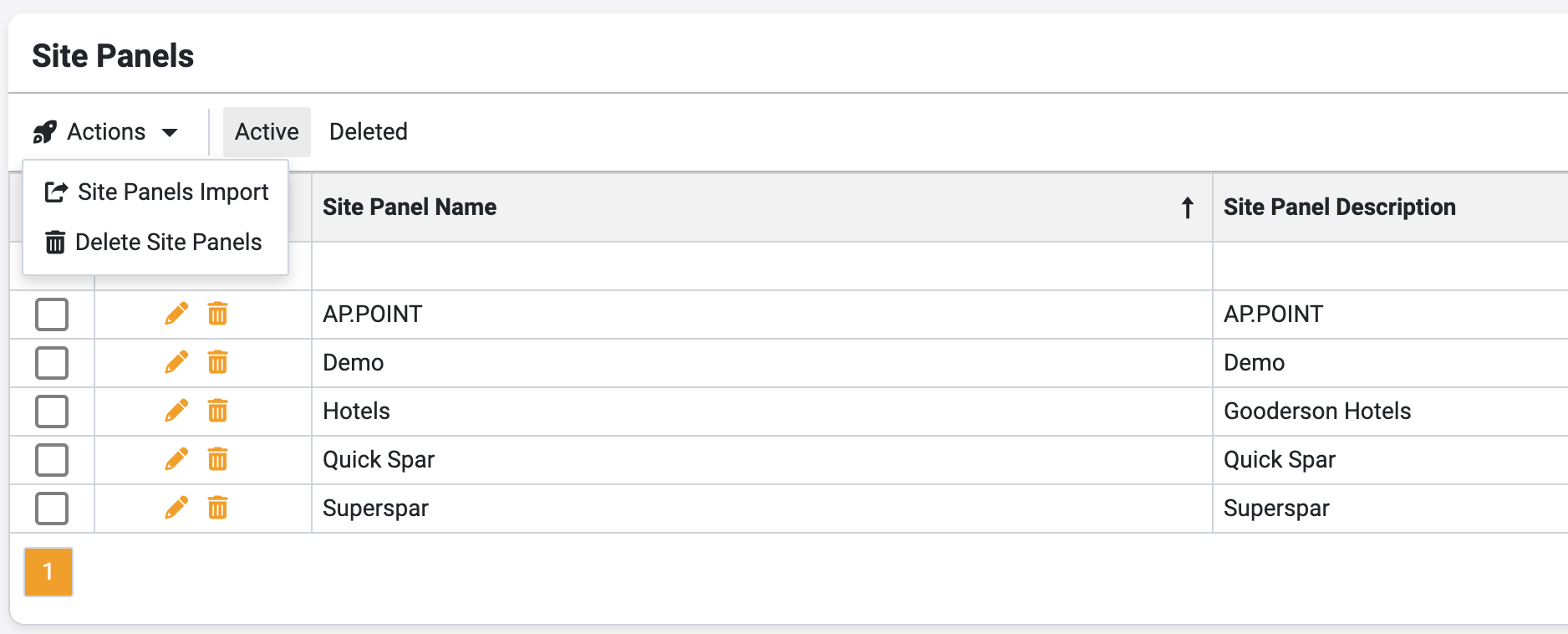
- Click on the "Site Panels Import" button located in the Actions menu.
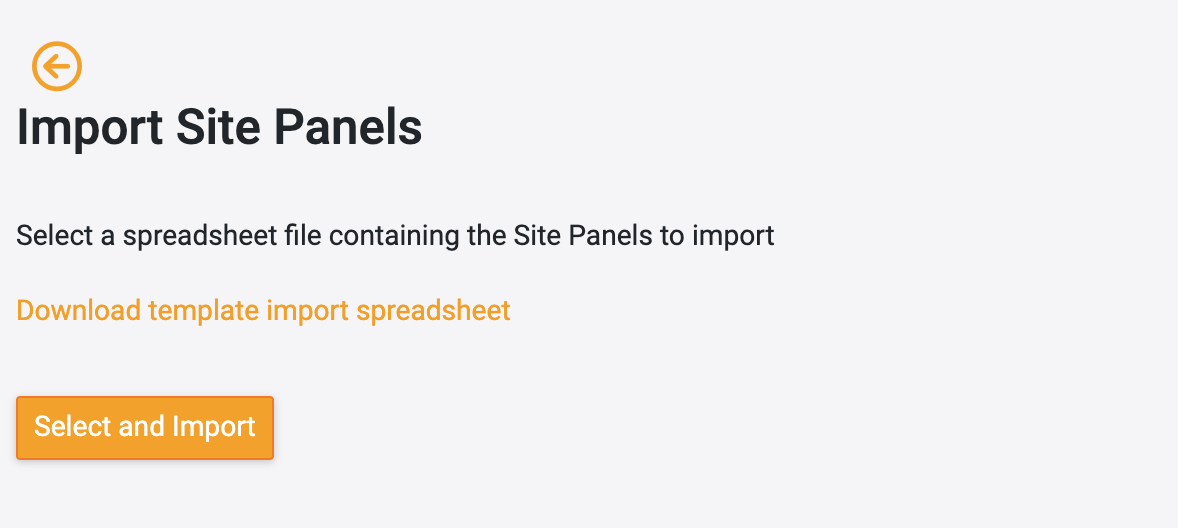
- Select the “Select and Import button” and open the Import sheet captured
3. Tips and Tricks
Best Practices: Double-check the data in the spreadsheet before importing to ensure accuracy.
Additional Resources
- Refer to the OPUS documentation or contact the support team.