

How-to : Bulk import Promotions Item Tracking and Implementation
On this page
1. Quick Overview
Purpose: The OPUS bulk import promotions item tracking and implementation
2. Step-by-Step Instructions
- Download the Excel import template by clicking on the link:
OPUSImportPromoItemTracking.
or
OPUSImportPromoItemImplementation. - Fill in the required information in the Excel spreadsheet.
- Columns with a Red Banner are considered Mandatory and must be captured
- Check the validation indicators in column A to ensure data accuracy.
- Green indicates correct entries, while
- Red indicates incomplete or invalid entries.
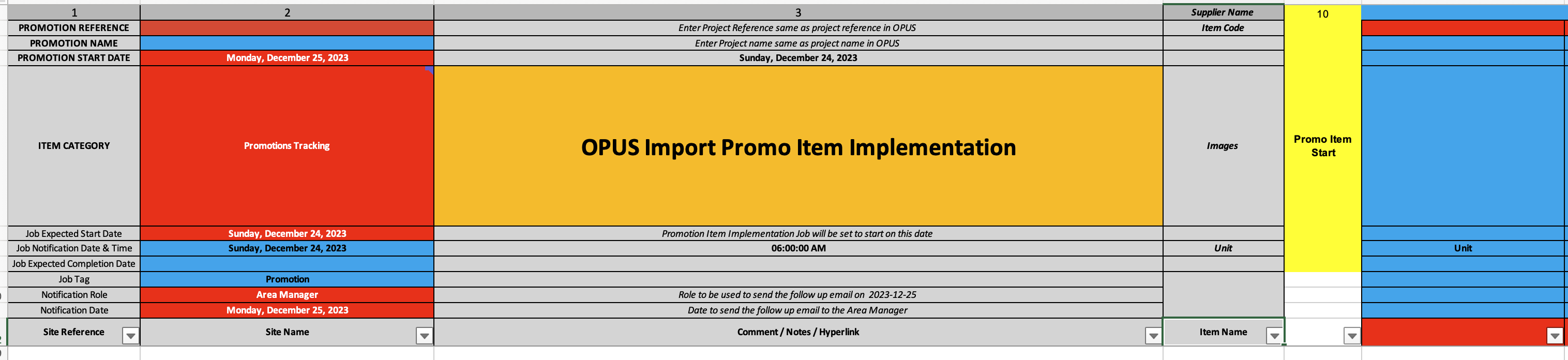
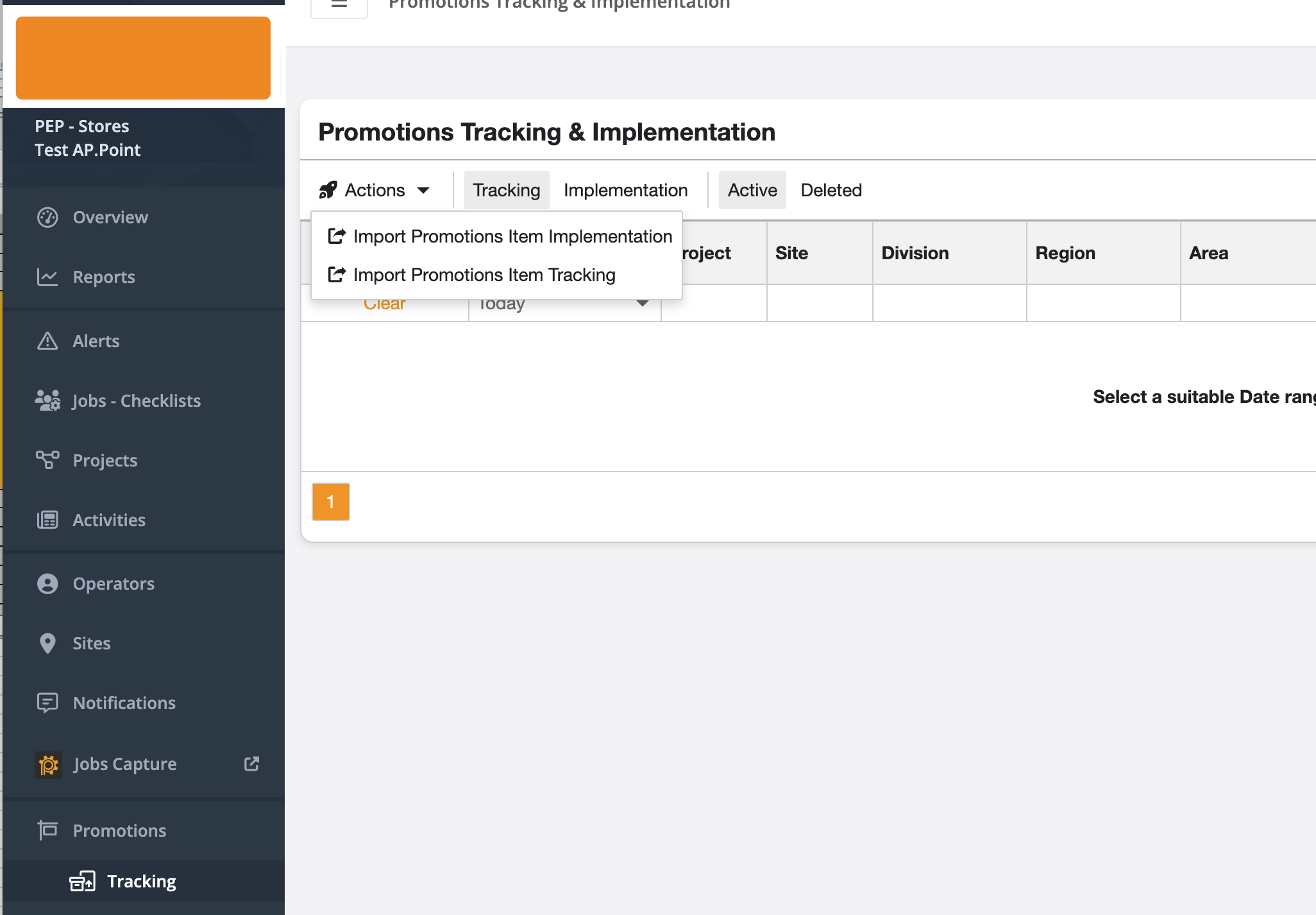
- Once the spreadsheet is filled out, log in to OPUS as an user with access to the Promotions section, click on the "Tracking" section on the left menu panel, under the items stock section.
- Click on the " Import" button located in the “Actions” menu.
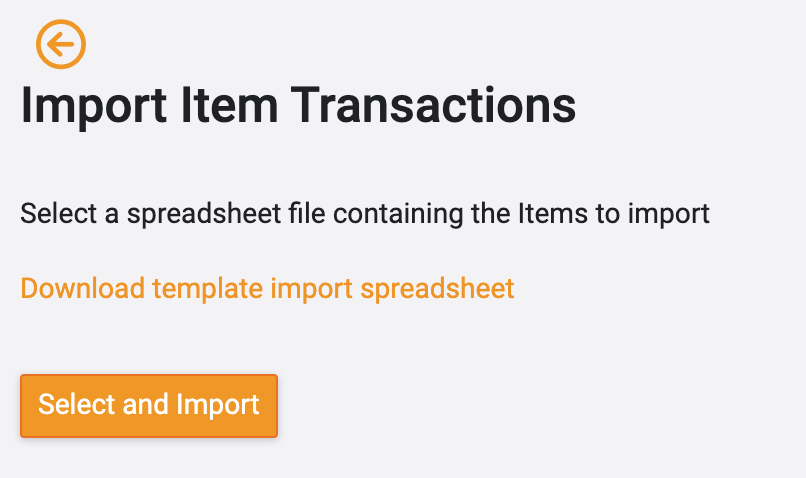
- Select the “Select and Import" button and open the Import sheet captured and select the bulk import file to import the Item Intake into OPUS
3. Tips and Tricks
Best Practices: Double-check the data in the spreadsheet before importing to ensure accuracy.
Additional Resources
- Refer to the OPUS documentation or contact the support team.