

Mobile App : Job actions in OPUS4business
On this page
1. Quick Overview
Purpose: This guide provides instructions on performing various actions within the OPUS4business mobile app to efficiently manage your jobs.
2. Step-by-Step Instructions
Accessing the Actions Menu
Open the OPUS4business app on your mobile device and navigate to your inbox.
Find the job you want to perform actions on and tap the three dots on the right-hand side of the job entry.
A menu with several action options will appear.
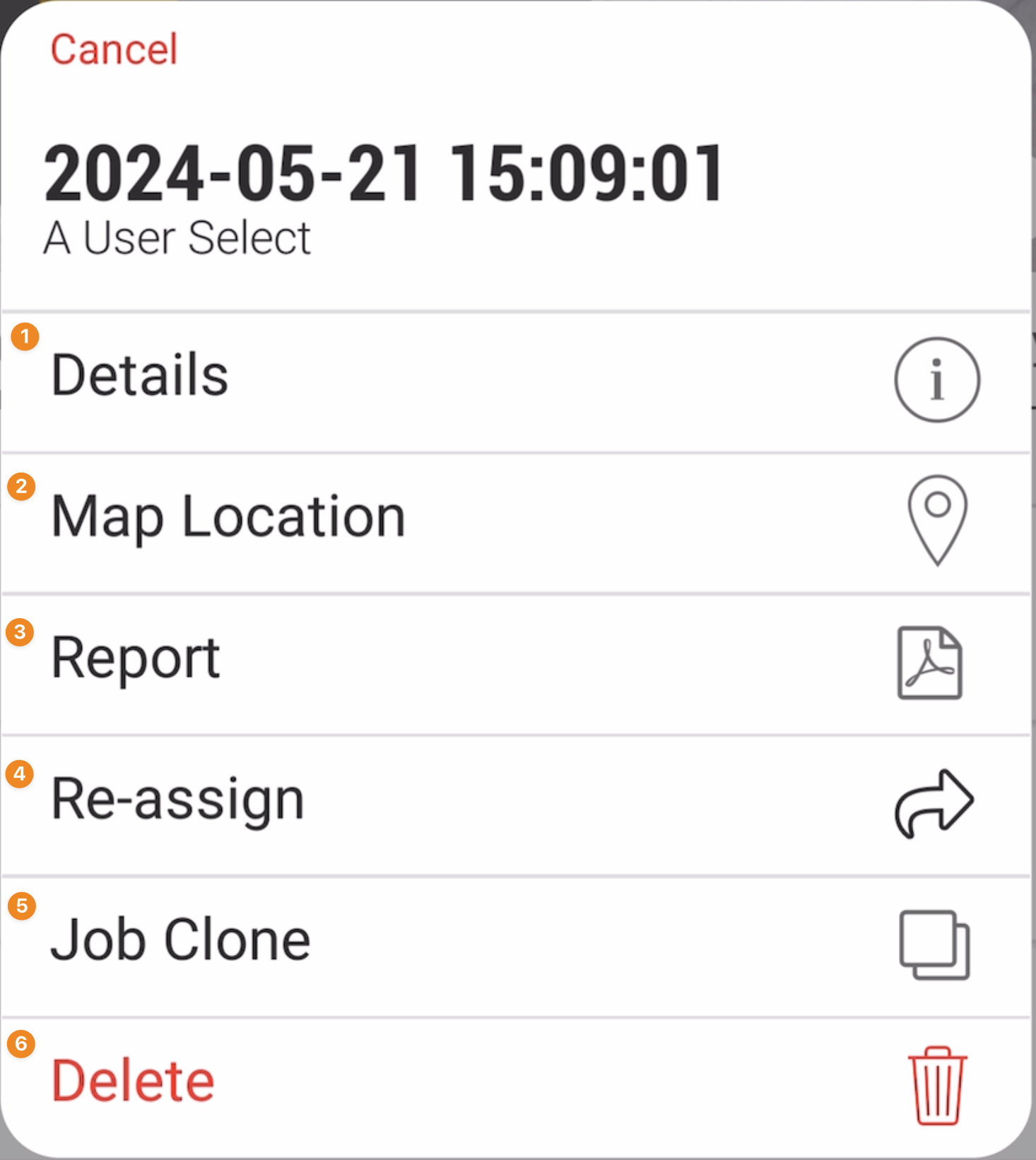
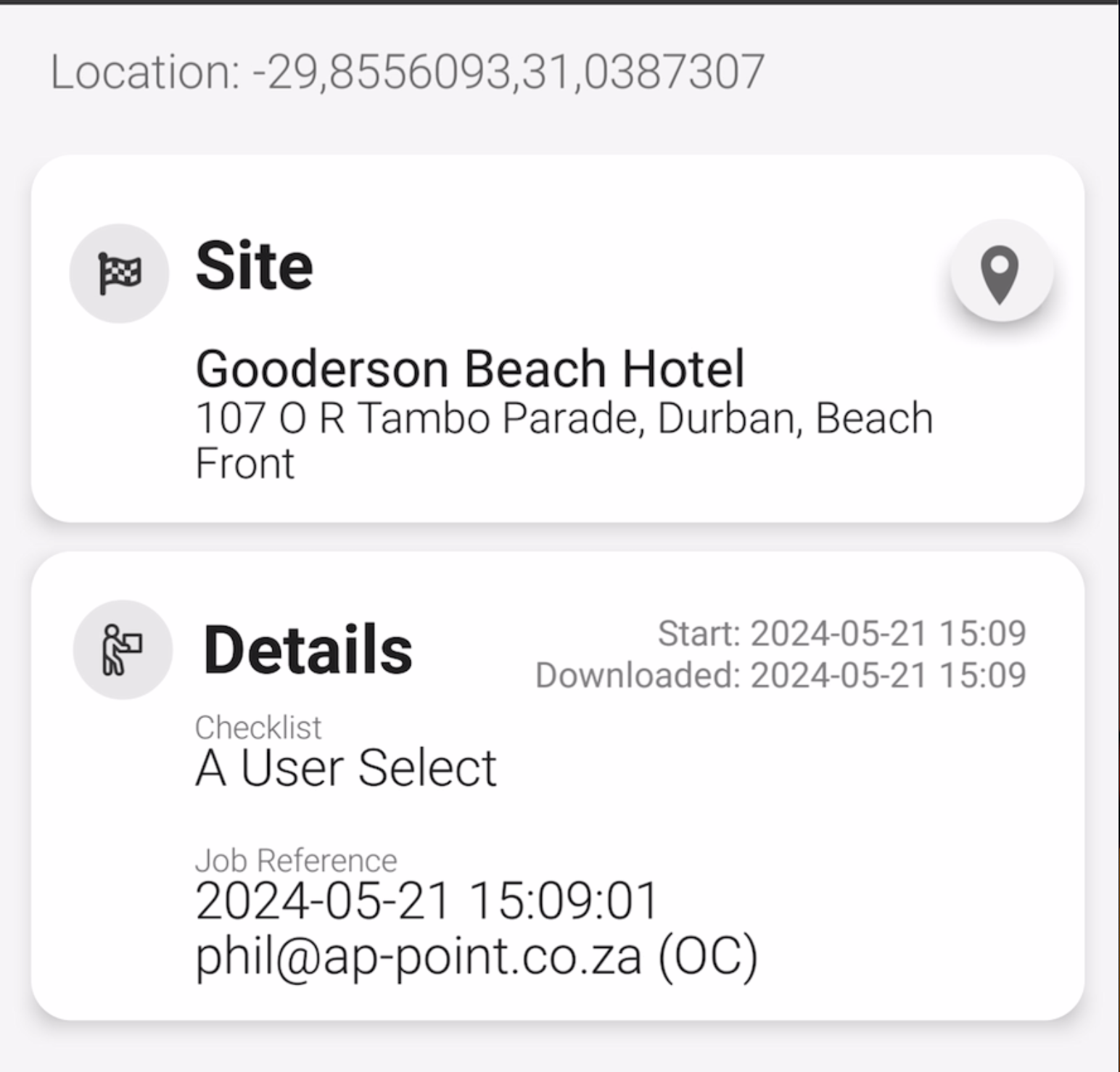
1. Details
- Select 'Details' from the actions menu.
- This will display all the information related to the job, including the site it is related to, any context users, and notes.
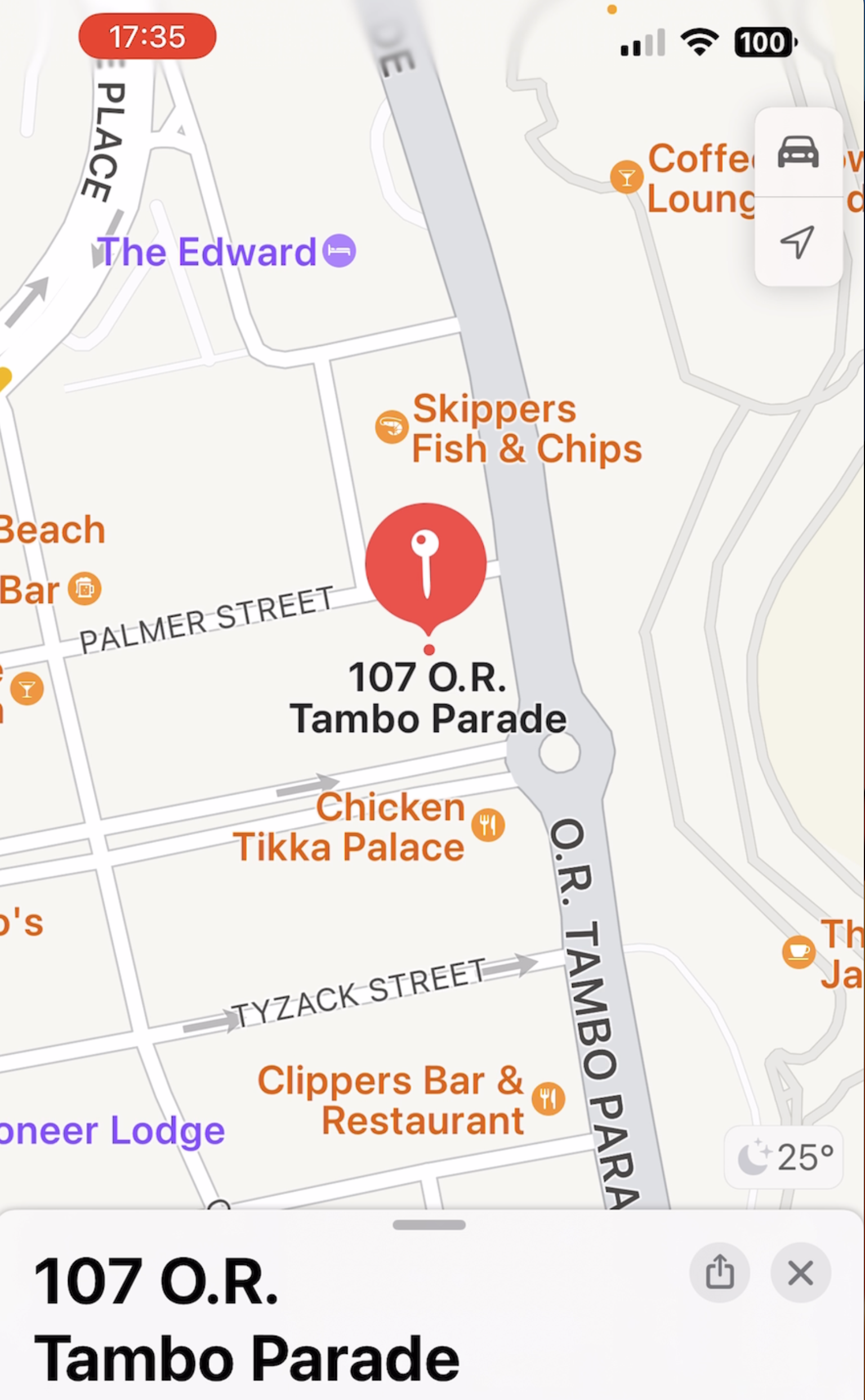
2. Map Location
- Select 'Map Location' from the actions menu.
- This option will open a map displaying the exact location of the site related to the job.
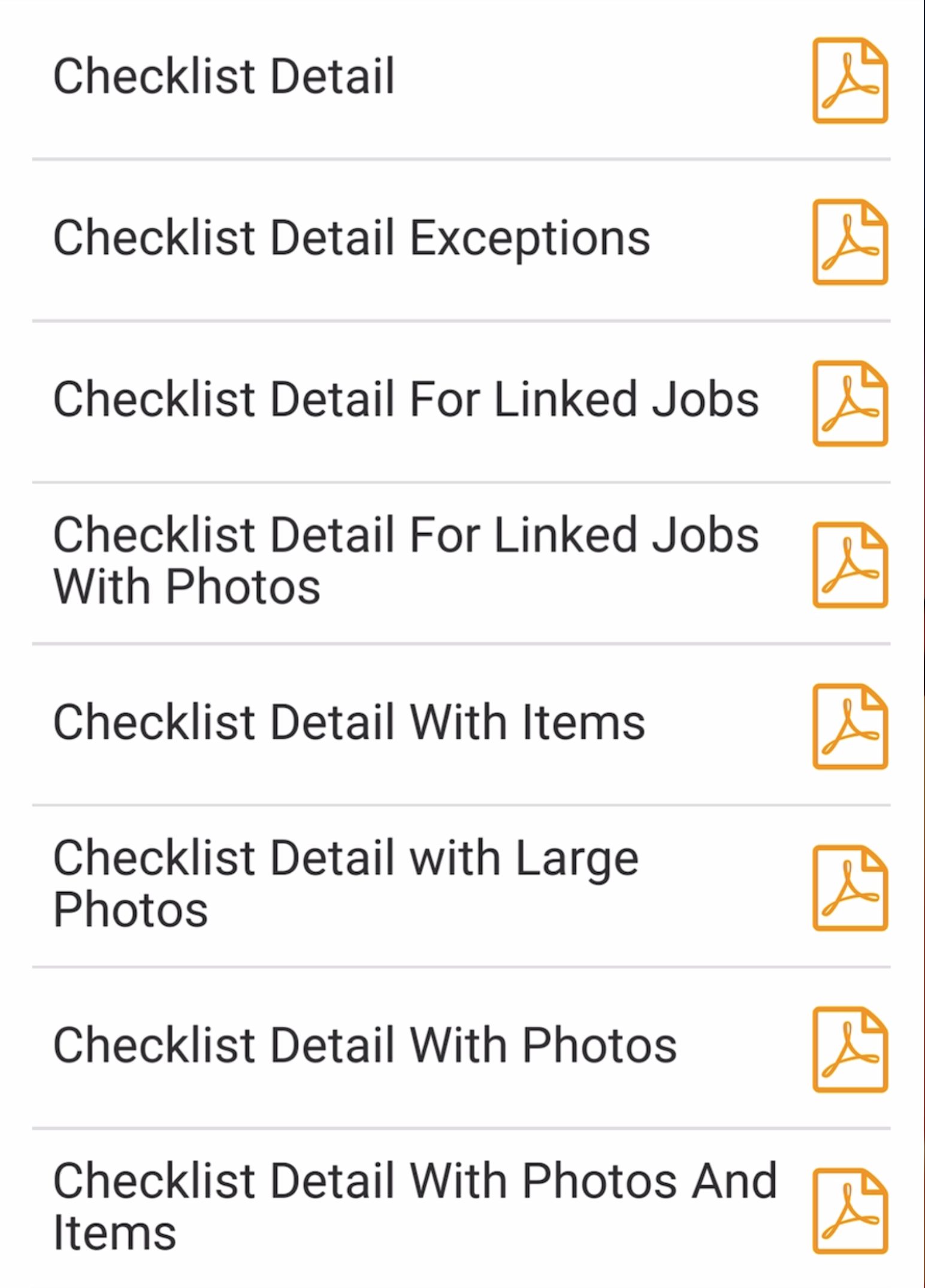
3. Report
- Select 'Report' from the actions menu.
- You can generate a detailed report of the job, which may include full checklist details, photos, and photo lists.
4. Re-assign
- Select 'Re-assign' from the actions menu.
- Choose the new assignee from your list of team members.
- Confirm the reassignment to transfer the job to the selected team member, which will remove the job from your app.
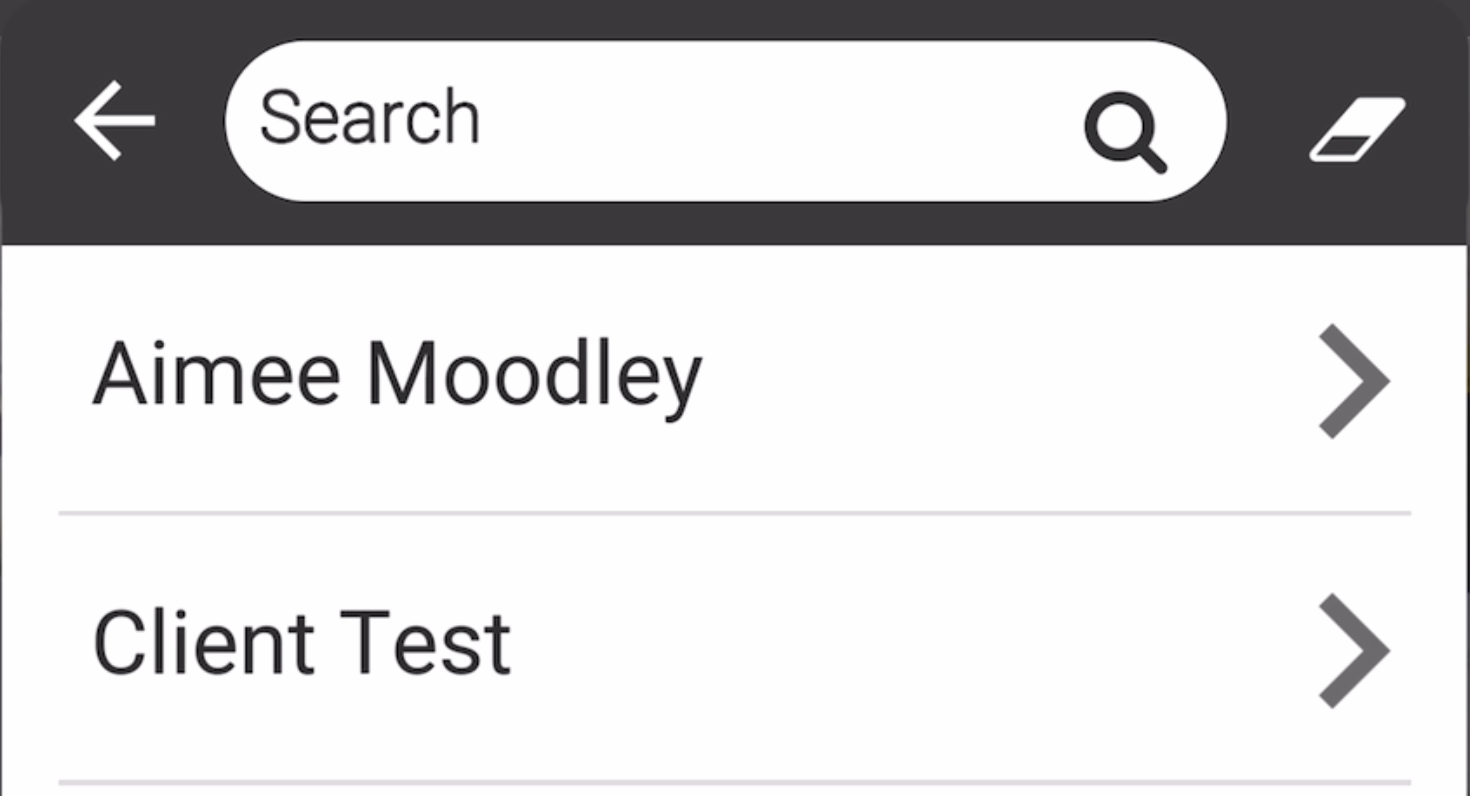
5. Job Clone
- Select 'Job Clone' from the actions menu.
- You can choose to make a straightforward copy or clone the job to another checklist.
- This action will duplicate the job, allowing you to continue with a new job that carries over the relevant information.
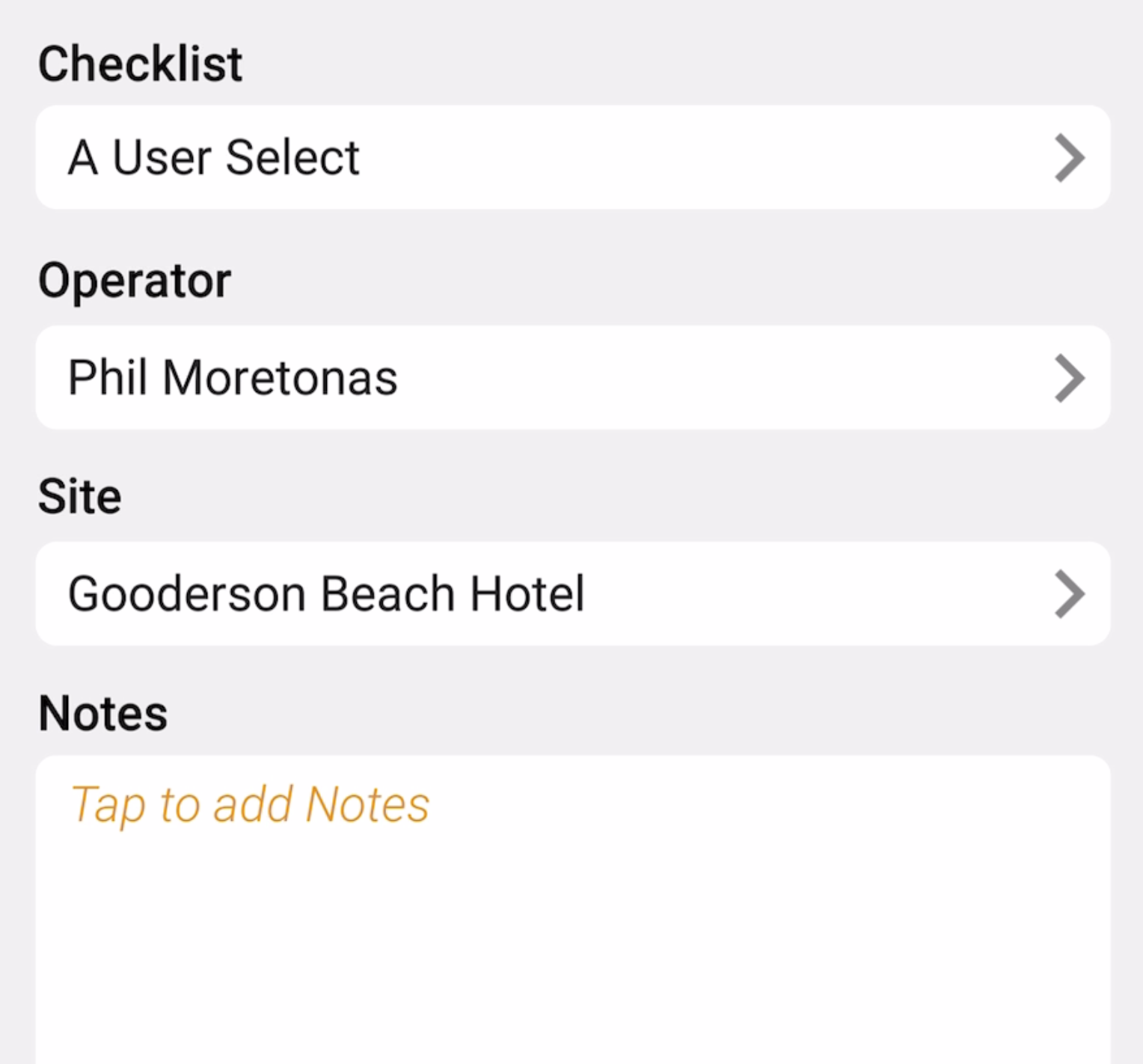
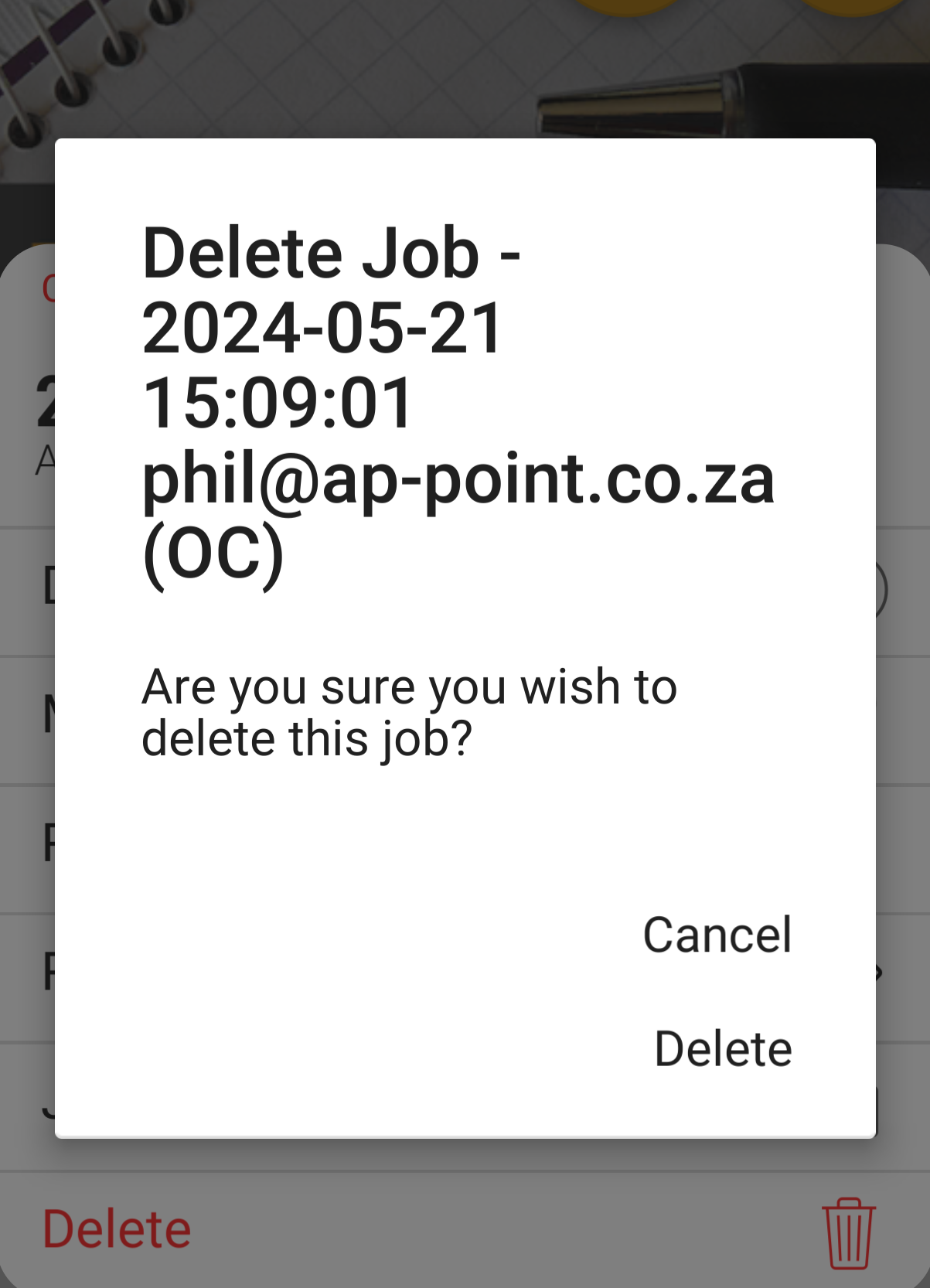
6. Delete
- Select 'Delete' from the actions menu.
- Confirm the deletion.
- If the job has not been started, it will be completely removed from the system.
- If the job is in progress or review, it will be marked as deleted and saved on the cloud but not visible unless you have access to undeleted jobs.
3. Tips and Tricks
Best Practices: Regularly review and update your jobs using the actions menu to keep your tasks organized and ensure timely completion.
Shortcuts: Use the three dots menu for quick access to various actions without navigating away from the inbox.
Additional Resources
- Refer to the OPUS4business support documentation for further guidance on accessing and utilizing historical data.