

ODMS : Use OPUS web, quick start guide
On this page
1. Quick Overview
Purpose: Purpose behind this Quickstart guide is to show you the different components of the opus web app. This will be useful in navigating the opus Web app
OPUS helps with a variety of tasks for Franchise Owners
Leads operators through a checklist
Auto Logging (Dates, times & Store)
Handles various types of data capture and checklists form
Photo, Text, Numbers, Bar Codes, Formulas, Temperatures, Ratings
Eliminating paperwork with digital jobs
Automatic follow up and workflow automation
Cloud access to store owners at any point
Manager & staff accountability
Easy to use
Offline
Records of all incidents
Full dashboard feedback
Key alerts highlighted
Daily and weekly issues emailed to owners
Historical trend on employee fitness and HR records
Managing expiry dates and temperatures
Reducing wastage
Full spectrum tracebility
Manage store reputation
2. ODMS Web Layout
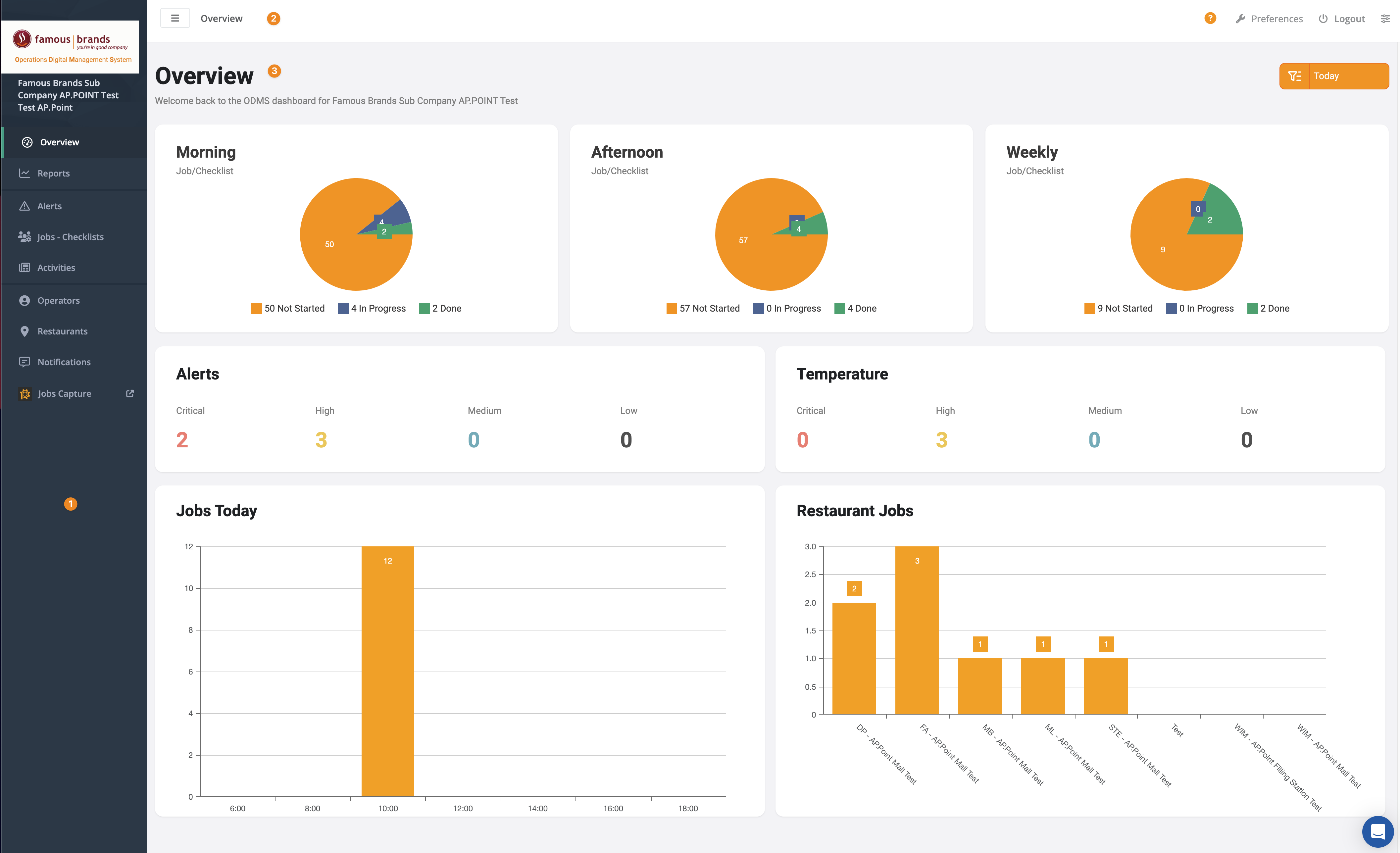
1. Sidebar
Provides users with easy navigation and quick access to different sections of a dashboard. The core feature of the sidebar includes links to the various parts of the dashboard. It’s organised with icons and labels to help users find their way around quickly.
The Sections included are:
Common Sections
- Overview
- Reports
- Alerts
- Jobs – checklists
- Operators
- Sites
- Activities
- Jobs capture
2. Topbar

- Menu: Collapse or Expand the Sidebar
- Search Bar: Allows users to quickly search for information related to the current content
- User Account Preferences: This section gives you quick access to your account preferences
- Logout: logs you out of the OPUS app
- Administration Setup: Takes you to the administration section to administer the site
3. Content
The content will be filled depending on what is selected in the sidebar. Each section is covered in more detail:
- Overview
- Reports
- Alerts
- Jobs – checklists
- Operators
- Sites
- Activities
- Jobs capture
3. Tips and Tricks
Best Practices: Ensure you have the correct roles to access the relevant information